Tutorial Blender 3D Cycles Render Explosion Realistic Fire and Smoke
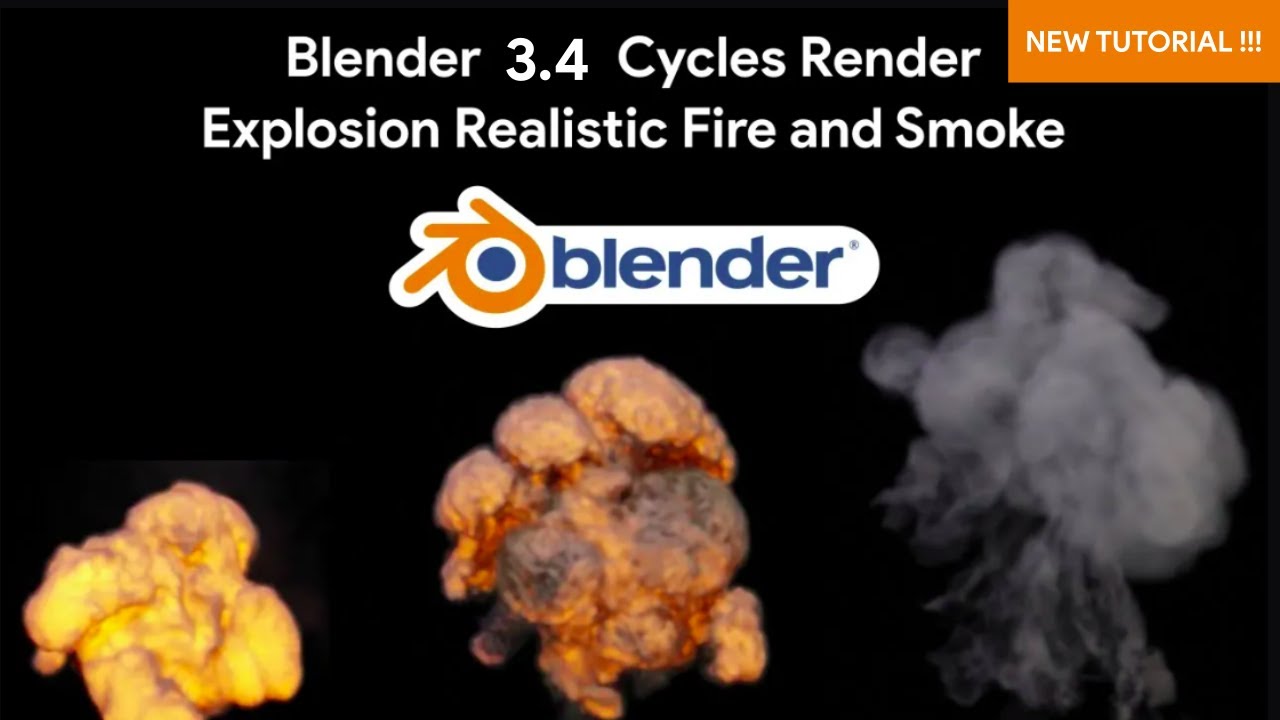
Tutorial Blender 3D Cycles Render Explosion Realistic Fire and Smoke: Master Visual Effects
Creating high-quality visual effects is a milestone for any 3D artist. One of the most sought-after skills in the industry is the ability to generate a realistic explosion.
This comprehensive guide focuses on the "Tutorial Blender 3D Cycles Render Explosion Realistic Fire and Smoke" video. We will dive deep into the mechanics of the Blender physics engine, exploring how to manipulate fire and smoke to create cinematic results.
Whether you are transitioning from 2D illustration to 3D or you are an experienced animator, mastering the Mantaflow fluid simulation in Blender is essential.
Read too : Tutorial Blender Natural Clay Material - Beginner Tutorial
You can watch the full video tutorial here to see the workflow in action: Watch Video on YouTube.
Understanding the Core Concepts of 3D Simulation
Before we press the bake button, we must understand the underlying logic of a 3D simulation. Unlike standard keyframe animation where you might control the trajectory of a soccer ball manually, simulations rely on mathematical calculations to determine movement.
This is often referred to as physic or physics-based rendering. In Blender, the domain acts as the bounding box where these calculations occur.
- The Flow Object: This is the source of your fire and smoke.
- The Domain: The container that defines the resolution and boundaries of the simulation.
- Effector Objects: These are collision objects that interact with the fluid.
For those who usually work on static 3D illustration, moving into simulations introduces the element of time and chaos. It is far more complex than applying an ice texture to a cube or setting up a simple gold material.
You are essentially acting as a director of nature, telling the software how gravity, heat, and density should behave.
Setting Up the Physics and Flow Settings
To achieve the "Explosion Realistic Fire and Smoke" look seen in the tutorial, tweaking the physics settings is mandatory. You begin by selecting your emitter object. In many beginner tutorials, you might see a simple sphere used as a flow object. However, to get that burst effect, you need to animate the flow source settings.
The settings in the Physics Properties tab are crucial. You need to set the Flow Type to "Fire + Smoke" and the Flow Behavior to "Inflow". Unlike a water simulation where the liquid settles, smoke expands. To simulate an explosion, you must animate the "Use Flow" checkbox.
You want the fire to burst out for a few frames and then stop, allowing the smoke to dissipate naturally. This is different from a continuous stream you might use for a chimney.
Enhancing Realism with Wind and Turbulence
A static explosion looks fake. To add life to your simulation, you need external forces.
Adding a wind force field introduces directional movement, pushing the smoke as if it is reacting to the environment. Turbulence fields break up the uniform patterns of the smoke, giving it that chaotic, organic look associated with real detonations.
Think of this step as similar to rigging a character. When you are rigging, you define how the bones move the skin. When you use force fields, you define how invisible forces move the volume.
It adds the nuance that separates a beginner render from a professional one. Even if you are building a scene with a soccer stadium background, the smoke needs to react to the air pressure effectively.
Cycles Render: The Key to Photorealism
While Eevee is a fantastic real-time engine, Cycles is the powerhouse for volumetric rendering. The "Tutorial Blender 3D Cycles Render Explosion Realistic Fire and Smoke" emphasizes the use of Cycles because of how it calculates light scattering through volume.
Lighting a volume is distinct from lighting a solid surface. When you light a solid object, like a model with a gold material, the light bounces off the surface. In a smoke simulation, the light penetrates the smoke, scatters, and absorbs. This is known as Volumetric Scattering.
Cycles handles this calculation with high precision, ensuring that your fire looks self-illuminating and your smoke casts proper deep shadows.
Shading the Fire with Nodes
The visual quality of the explosion comes down to the shader setup. We utilize the Principled Volume shader, which is the standard for rendering gas in Blender. However, the default settings are rarely sufficient for a high-energy explosion.
You will need to manipulate the Blackbody Intensity. This controls how bright the fire appears based on its temperature. By using a Color Ramp node connected to the Blackbody Tint, you can shift the fire colors from a hot white to a cool red and eventually to dark smoke.
This node setup is different from what you might use for node geometry or procedural texturing, but the logic of connecting inputs and outputs remains the same.
Key Shader Settings to Tweak:
- Density: Controls how thick the smoke appears.
- Anisotropy: Determines how light scatters forward or backward through the smoke.
- Emission Strength: vital for making the fire glow in the Cycles render.
- Temperature Attribute: drives the Blackbody radiation.
Integrating Rigid Body Physics
To take your explosion to the next level, you should consider adding debris. This is where rigid body physics comes into play. An explosion rarely happens in a vacuum; it shatters the ground and sends objects flying.
By combining your fluid simulation with rigid body simulation, you create a scene where chunks of concrete or dirt interact with the explosive force.
Imagine animating a ball hitting a wall. You would use rigid body physics for the bounce. Apply that same concept here, but use the explosion force to drive the movement of hundreds of small particles. This creates a multi-layered effect that feels massive and dangerous.
Comparing Workflows: Fluid vs. Other Techniques
It is important to note the difference between various simulation types in Blender. A water simulation fluid approach uses a different solver (FLIP fluids) compared to the gas solver used for fire. While both are fluids, water requires surface mesh generation, whereas fire is purely volumetric.
Similarly, creating effects with node geometry is a modern approach that is gaining popularity. You can create stylized explosions using points and instances in Geometry Nodes.
However, for pure photorealism similar to Hollywood movies, the voxel-based Mantaflow simulation in Cycles, as shown in the tutorial, remains the superior method.
Optimization and Baking
Simulations are resource-intensive. Before you start, ensure you have the latest version of the software. You can get it here: Download Latest Version Blender.
High-resolution simulations require significant RAM and CPU power. Always start with a low resolution (around 32 or 64 divisions) to test the motion. Once you are happy with the speed and shape, bump the resolution up to 128, 256, or even higher for the final bake.
Do not forget to enable "Noise" in the fluid settings. Noise adds high-frequency detail to the smoke without requiring a massive base resolution increase. It creates those small swirls and wisps that make the smoke look like it has an ice texture of detail rather than a soft, blurry blob.
Tutorial Technical Specifications
| Software Required | Blender 3.0 or Higher |
|---|---|
| Render Engine | Cycles X |
| Simulation Type | Mantaflow Fluid (Gas/Smoke) |
| Key Nodes Used | Principled Volume, Color Ramp, Math Nodes |
| Difficulty Level | Intermediate |
| Hardware Focus | CPU for Simulation, GPU for Rendering |
| Download Link | Get Blender Free |
Expanding Your Blender Skill Set
Once you have mastered fire and smoke, you should look into other areas of Blender to become a well-rounded 3D artist. Visual effects often need to be composited over other elements. Perhaps you want to create a futuristic scene involving glowing elements or intricate liquid simulations.
For instance, lighting plays a huge role in how your explosion interacts with the scene. If you are interested in lighting effects, you should check out this guide: How to Make Stunning Neon Light Text in Blender (A Complete 3D Tutorial). It covers emission shaders which are very similar to how we control fire intensity.
If you enjoyed the physics aspect of this tutorial and want to try something with liquids instead of gas, looking into fluid mechanics is your next step. You can learn more about that here: Water Simulation Fluid Blender Tutorial Cycles Render. This will clarify the differences between gas and liquid solvers.
Finally, keeping up with design trends is vital for any commercial artist. Combining realistic effects with trendy designs can yield impressive portfolio pieces. Learn how to integrate these styles here: How to make design trend (Handphone and balloons) in Blender 3D.
Final Thoughts on the Explosion Workflow
Creating a realistic explosion in Blender using Cycles is a rewarding challenge. It combines technical knowledge of physics, wind, and simulation with the artistic eye needed for shading and composition. Remember that experimentation is key.
Every explosion is unique. Change the vorticity, adjust the fuel rate, or modify the noise settings to create something entirely your own.
This workflow applies to more than just war scenes. It is used in motion graphics, product reveals (imagine a soccer ball exploding into confetti), and scientific visualization. Keep practicing, keep baking those simulations, and continue pushing the boundaries of what you can create in 3D.
More Blender Video in this playlist : Playlist Blender Tutorial on YouTube
Link My Store in CGTrader : My Profile on CGTrader
Link My Profile in BlenderNation : My Profile on BlenderNation
Link My Store in BlenderMarket / SuperHive : My Store BlenderMarket ( SuperHive )
Like, Share, Comment, and Subscribe !!!
✨ Support Me :
Buy me a coffee: Buy me a coffee
Link Ko-Fi: Support me on Ko-fi
Link PayPal: Donate via PayPal
____________________________Please visit my store, if you want to buy you can via this link or contact me. My LinkTreeEmail : sofyantsaury63@gmail.com


