Tutorial Blender Cell Fracture with Pencil and without Pencil - Step by Step Tutorial!
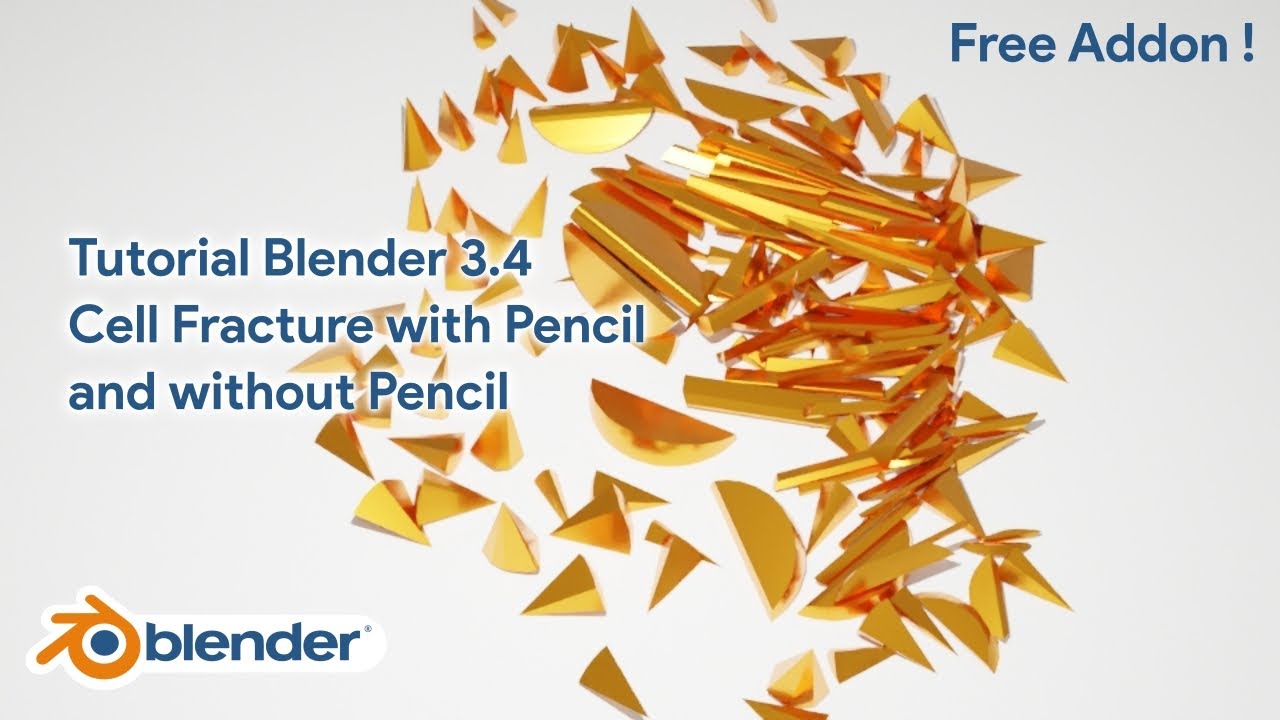
Mastering Blender Cell Fracture: Step-by-Step 3D Tutorial with and without Pencil
Creating realistic destruction in 3D illustration and animation requires precise tools. One of the most powerful, yet often overlooked features in Blender is the Cell Fracture add-on.
Whether you are smashing a stone wall, breaking a window, or fracturing a delicate ice texture, understanding how to control the break patterns is crucial for a professional look. This article serves as a comprehensive guide to mastering this tool.
In this detailed post, we explore two distinct methods to fracture objects: the automated mesh-based approach and the precise "Pencil" method (using Annotation tools) to direct exactly where cracks appear.
We will also cover how to integrate these fractured pieces with rigid body physics to create stunning simulations.
Read too : Blender Tutorial Fabric Texture Material - Easy and Simple Tutorial
Before we dive deep into the mechanics, ensure you have the software ready. You can follow along with our video guide or read the text version below.
Watch the full visual guide here: Tutorial Blender Cell Fracture with Pencil and without Pencil - Step by Step Tutorial!
Need the software? Download Latest Version Blender.
Understanding the Cell Fracture Add-on in Blender
The Cell Fracture add-on comes pre-installed with Blender but needs to be enabled. Unlike procedural methods using node geometry, Cell Fracture creates real geometry cuts based on the object's volume or particle systems.
This is essential for physics simulations where you need individual shards to interact with gravity, wind, and other objects.
Enabling the Add-on
- Open Blender and navigate to Edit > Preferences.
- Select the "Add-ons" tab.
- Search for "Cell Fracture" and check the box to enable "Object: Cell Fracture".
- Save your preferences to ensure it remains active for future projects.
Method 1: Basic Cell Fracture (Without Pencil)
The standard method relies on random noise or particle systems to determine where the object breaks. This is perfect for generic destruction, such as a building collapsing or a rock exploding.
Step-by-Step Workflow
Start by selecting your target object. For this example, imagine a simple cube or a model of a gold bar that you want to shatter.
1. Select your mesh in Object Mode.
2. Press F3 (or Spacebar, depending on your keymap) and search for "Cell Fracture".
3. Select "Cell Fracture" from the search results.
A menu will appear with various settings. The "Source Limit" determines the number of pieces. If you set this to 100, Blender will attempt to create 100 shards.
The "Noise" setting adds irregularity to the cuts, preventing them from looking too perfectly straight, which is vital for realistic material appearance.
Once you click OK, the add-on calculates the fracture. You will notice that the original object remains, and a new collection of fractured pieces is created on top of it. It is best practice to move the original object to a separate collection or hide it.
Method 2: Precision Fracture with Pencil (Annotation Tool)
Sometimes, random destruction is not enough. If you are animating a soccer ball hitting a glass pane, you want the cracks to radiate outward from the point of impact.
This is where the "Pencil" method shines. It allows you to draw the fracture lines manually.
Using the Annotation Tool
This technique gives you artistic control, similar to how an illustrator plans a drawing. You act as the architect of the destruction.
- Locate the Annotation tool in the left-hand toolbar (hold down the measure/ruler icon if you do not see it, or press Shift + Space and select Annotate).
- Draw lines directly onto your 3D object surface. Draw circles, zig-zags, or spider-web patterns where you want the breaks to occur.
- Once your drawing is complete, press F3 and search for "Cell Fracture" again.
- In the Cell Fracture menu, look for the "Point Source" section.
- Select "Annotation Pencil" (or "Grease Pencil" in older versions).
- Adjust the "Source Limit" to match the density of your drawing.
When you execute the command, Blender uses your drawn lines as the primary guides for the boolean cuts.
This results in a fracture pattern that perfectly matches your artistic intent.
Integrating Physics: Rigid Body Simulation
Fracturing the object is only half the battle. To make it look like a real animation, the pieces must fall and collide. This is handled by the rigid body system.
After fracturing, select all the new shards. Go to the Physics tab and add a Rigid Body. Ensure the type is set to "Active". For the floor or ground object, add a Rigid Body and set it to "Passive".
When you press play, the shards will collapse. To make them shatter only upon impact (like a vase hitting the floor), follow these steps:
- Select all shards.
- In the Physics settings, enable "Deactivation" and check "Start Deactivated".
- This tells the simulation to keep the pieces frozen until another object (like a projectile) hits them with enough force.
Advanced Tips for 3D Artists
To elevate your scene, consider the environment. If you are creating a winter scene, apply an ice material to the shards. Adjust the transmission and roughness to mimic frozen water.
Unlike a fluid or water simulation which requires domain baking, fractured ice relies on solid rigid body mechanics.
For outdoor scenes, adding a wind force field can influence lighter fragments, blowing dust and small debris away from the impact site. This adds a layer of realism that static animations lack.
Rigging and Parenting
While standard rigging with bones is used for characters, fractured objects can be parented to an empty or a control bone before the physics simulation takes over.
This allows you to animate the object moving through space (like a meteor flying) before it strikes a target and the physics engine activates.
If you are interested in more lighting effects to complement your destruction scenes, check out this guide: How to Make Stunning Neon Light Text in Blender (A Complete 3D Tutorial).
Common Issues and Solutions
Sometimes the Cell Fracture add-on fails to create watertight meshes, resulting in holes. To fix this, ensure your source mesh is "Manifold" (has no holes) before fracturing.
You can also try scaling up your object significantly, applying the fracture, and then scaling it back down. This helps Blender's boolean calculator handle small details better.
Another common issue is "jittering" pieces. This happens when physics collision margins are too large. In the Rigid Body settings, reduce the "Sensitivity > Margin" value to 0.01m or lower.
Expanding Your Skill Set
Mastering destruction is just one part of the 3D pipeline. Understanding how fluids interact with solids can take your work to the next level.
For those looking to dive into liquid physics, we recommend reading: Water Simulation Fluid Blender Tutorial Cycles Render.
Furthermore, keeping up with design trends is vital for a commercial portfolio. Learn how to combine modeling with modern aesthetics here: How to make design trend (Handphone and balloons) in Blender 3D.
Summary and Technical Overview
Using Cell Fracture with the Pencil tool bridges the gap between procedural generation and manual modeling.
It allows for specific, directed destruction that serves the story of your animation. Whether you are destroying a concrete pillar or a delicate glass ornament, the workflow remains consistent: Prepare mesh, Annotate (optional), Fracture, and Apply Physics.
Tutorial Technical Specifications
| Software Required | Blender 3D (Version 2.8 or higher) |
| Add-on Name | Cell Fracture (Built-in) |
| Difficulty Level | Beginner to Intermediate |
| Key Techniques | Boolean Operations, Rigid Body Physics, Annotation Tool |
| Primary Application | Animation, VFX, Motion Graphics |
| Render Engine Support | Cycles & Eevee |
| Download Resource | Get Blender Software |
We hope this guide helps you integrate high-quality destruction effects into your next project. Remember, the key to realistic physic simulations is iteration.
Tweak your mass, friction, and bounce settings until the movement feels right. Do not forget to watch the video linked at the top for a visual walkthrough of every step mentioned here.
Happy Blending!
More Blender Video in this playlist : Playlist Blender Tutorial on YouTube
Link My Store in CGTrader : My Profile on CgTrader
Link My Profile in BlenderNation : My Profile on BlenderNation
Link My Store in BlenderMarket / SuperHive : My Store BlenderMarket ( SuperHive )
Like, Share, Comment, and Subscribe !!!
✨ Support Me :
Buy me a coffee: Buy me a coffee
Link Ko-Fi: Support me on Ko-fi
Link PayPal: Donate via PayPal
____________________________Please visit my store, if you want to buy you can via this link or contact me. My LinkTreeEmail : sofyantsaury63@gmail.com


