Blender Tutorial Realistic Fire Simulation Cycles Render - Easy and Simple Tutorial
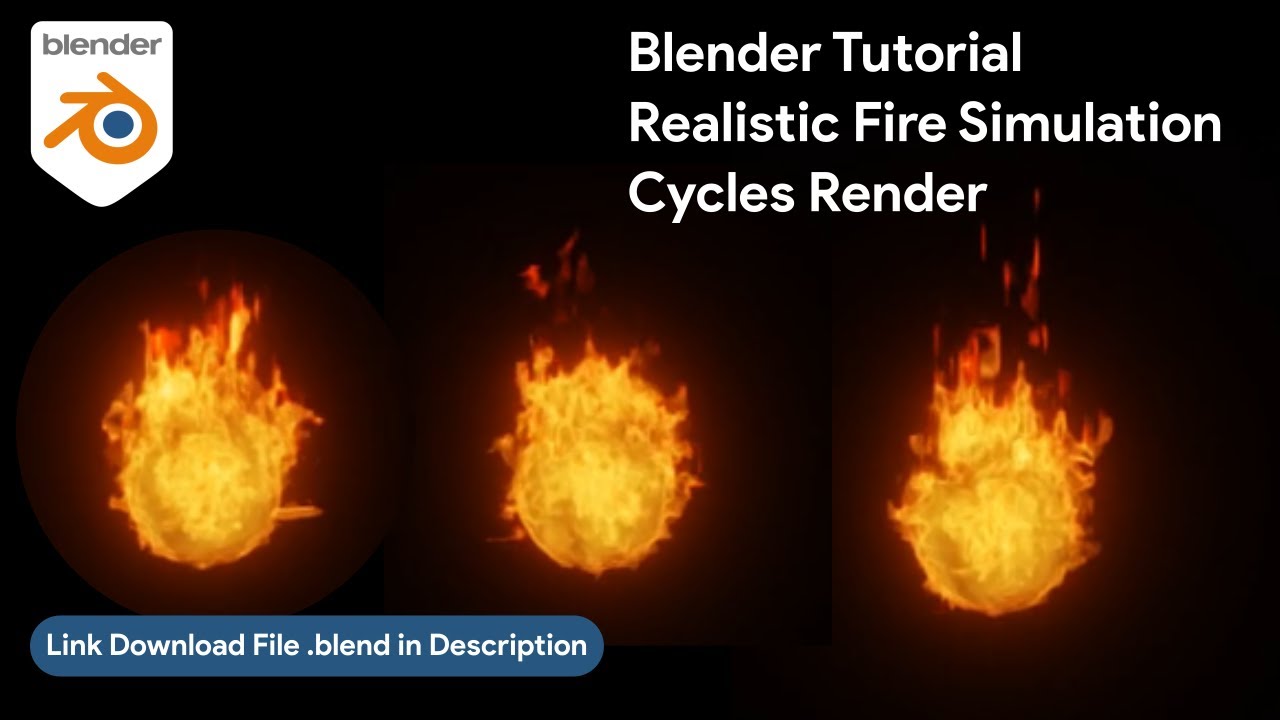
Blender Tutorial Realistic Fire Simulation Cycles Render - Easy and Simple Tutorial for 3D Artists
Creating realistic elemental effects is one of the most sought-after skills in the world of computer graphics. Whether you are working on a dramatic movie scene or a dynamic 3d illustration, fire remains a challenging element to master.
In this comprehensive guide, we will dive deep into a specific Blender Tutorial Realistic Fire Simulation Cycles Render - Easy and Simple Tutorial. We will explore how to harness the power of the Cycles rendering engine to create fire that looks hot, organic, and physically accurate.
The world of 3d design is vast, encompassing everything from character rigging to environmental physics. However, fluid and gas simulations hold a special place because they require a blend of technical knowledge and artistic intuition.
By following the steps associated with the video link provided below, you will learn to manipulate settings that control heat, density, and vorticity to achieve the perfect look.
Read too : Create Realistic Grass Physics in Blender 3D – Complete Tutorial
Watch the Full Video on YouTube Here
Read too : Cute chubby cat astronaut floating in space, pastel colors, kawaii style, bold outline, vector art
Why Choose Cycles for Fire Simulation?
Blender offers two primary render engines: Eevee and Cycles. While Eevee is fantastic for real-time rendering, Cycles provides the path-tracing capabilities necessary for true photorealism, especially when dealing with volumetric materials like fire and smoke.
When you render fire, you are essentially rendering light emitting from a volume. Cycles calculates the bounce of light rays accurately, allowing the fire to cast realistic lighting onto surrounding objects, such as a gold material surface or an ice texture background.
Understanding the physics behind the simulation is crucial. In Blender, the simulation is driven by a domain and a flow object. The domain defines the boundaries where the physic calculations occur, and the flow object is the source of the fire.
This is similar to how you might set up a water simulation, where boundaries dictate the fluid's movement.
For those interested in expanding their lighting skills beyond natural fire, check out this guide on How to Make Stunning Neon Light Text in Blender (A Complete 3D Tutorial).
Step-by-Step Guide to the Tutorial
To achieve the result seen in the tutorial video, you need to follow a structured workflow. Here is a breakdown of the critical phases in creating the simulation:
- Preparing the Geometry: Start with a simple mesh, such as a sphere or a customized shape. This will act as your emitter. Unlike complex animation rigging required for characters, the emitter mesh can be static or animated simply.
- Quick Smoke Setup: Blender provides a 'Quick Effects' menu. Selecting 'Quick Smoke' instantly sets up a basic domain and flow object, saving you time on initial configuration.
- Adjusting Physics Settings: This is where the magic happens. You must tweak the 'Fuel' settings, 'Vorticity' (which adds swirling detail), and 'Adaptive Domain' settings to ensure the fire looks like a natural reaction to wind and temperature.
- Shading with Nodes: In the Shader Editor, you will manipulate the Principled Volume node. By connecting a Blackbody node to the Emission Strength, you simulate the physical property where color is determined by temperature.
Expanding Your 3D Skill Set: From Fire to Physics
Learning fire simulation is a gateway to understanding the broader physics engine in Blender. Once you master the behavior of gas simulations, you can apply similar logic to other elements. For instance, imagine a scene where a soccer ball is kicked through a wall of fire.
This would require combining rigid body physics for the ball's collision and the fire simulation for the visual effect.
The versatility of Blender allows you to mix different types of simulations. You could create a scene of duality featuring fire and ice.
You might create an ice texture that melts as the fire simulation gets closer, utilizing dynamic paint or node geometry to displace the mesh surface in real-time.
If you are interested in mastering the liquid counterpart to fire, do not miss our Water Simulation Fluid Blender Tutorial Cycles Render.
Furthermore, procedural generation using node geometry is becoming industry standard.
While this fire tutorial focuses on volumetric simulation, you can use Geometry Nodes to generate the fuel source or to create debris that reacts to the wind turbulence fields affecting the fire.
Tutorial Specifications
| Software | Blender 3D |
| Render Engine | Cycles (Ray Tracing) |
| Key Techniques | Fluid Simulation, Volumetrics, Shading |
| Difficulty Level | Beginner to Intermediate |
| Related Concepts | Physics, Texture, Node Geometry |
| Download Source | Get Blender Latest Version |
Mastering Materials: The Look of Fire
A simulation is only as good as its shader. In the tutorial, you will see how to move beyond the default gray smoke. By utilizing the Attribute Node, you can pull data like 'heat' and 'density' from the simulation cache and use it to drive the color ramp.
This allows for a gradient that shifts from a hot white core to a yellow body, and finally to red and cooling dark smoke.
This concept of material layering applies everywhere in Blender. Whether you are creating a shiny gold material for a jewelry render or a rough concrete texture for architectural visualization, the principles of node-based shading remain consistent.
Understanding how light interacts with volumes in this fire tutorial will improve your understanding of subsurface scattering and transmission in solid objects as well.
Creative Applications for Fire Simulations
How can you apply this tutorial to your portfolio? Consider the following project ideas that integrate various high-value keywords and techniques:
- Sports Animation: Create a dynamic bumper for a sports channel where a soccer ball ignites into flames as it flies into the net. This combines rigid body physics with fluid simulation.
- Product Visualization: Render a luxury watch or a perfume bottle emerging from a ring of fire. The contrast between the chaotic fire and the clean gold or glass material creates high visual impact.
- Abstract Art: Use wind force fields to twist the fire into unnatural shapes, creating a surreal 3d illustration that defies gravity.
Speaking of trendy designs and objects, learn how to model modern props with our guide on How to make design trend (Handphone and balloons) in Blender 3D.
Optimizing Your Scene for Cycles
Fire simulations can be computationally expensive. The tutorial linked above provides an easy and simple approach, but it is important to manage your system resources.
When using Cycles, ensure you are using GPU computing if available. Adjusting the 'Step Rate' for volumes in the render settings can significantly speed up render times without a massive loss in quality.
Additionally, when baking the simulation cache, ensure you have enough storage space. High-resolution simulations that capture fine details like small wisps of smoke influenced by wind require storing large amounts of voxel data.
This is the technical side of being a 3D artist that compliments the artistic side of lighting and composition.
Final Thoughts
Mastering this Blender Tutorial Realistic Fire Simulation Cycles Render - Easy and Simple Tutorial will elevate your work. It moves you beyond simple modeling and into the realm of dynamic VFX.
Whether you are aspiring to work in animation, game design, or high-end advertising, physics simulations are a must-have skill.
Remember to experiment. Once you have finished the tutorial, try changing the variables.
What happens if you increase the wind? What if the emitter is a rigging character instead of a simple sphere? The possibilities with Blender are endless.
Don't forget to download the latest version of the software to ensure you have all the latest features and bug fixes. You can find it at Official Website Blender.
More Blender Video in this playlist : Playlist Blender Tutorial on YouTube
Link My Store in CGTrader : My Profile on CgTrader
Link My Profile in BlenderNation : My Profile on BlenderNation
Link My Store in BlenderMarket / SuperHive : My Store BlenderMarket ( SuperHive )
Like, Share, Comment, and Subscribe !!!
✨ Support Me :
Buy me a coffee: Buy me a coffee
Link Ko-Fi: Support me on Ko-fi
Link PayPal: Donate via PayPal
____________________________Please visit my store, if you want to buy you can via this link or contact me. My LinkTreeEmail : sofyantsaury63@gmail.com


